





JamOrder · In-House
At the tableOrder at the table by QR code
Guests scan the QR code on the table, see your menu with photos and allergens and order right in the browser. Whether they pay straight away or at the end is up to you, for the whole venue or for each QR code individually.
- CHF 0
- Monthly fee, no licence or set-up fee
- No app
- the menu opens in the browser, an account is optional
- Three languages
- German, English and Italian
Your guests pay online with
- TWINT
- Apple Pay
- Google Pay
- Visa
- Mastercard
- PostFinance Pay
Order types
You decide when guests pay
Each QR code follows the venue setting or gets its own.
Order and pay straight away
The default: guests order and pay in one step. Nothing is left open at the table.
Order now, pay later
Orders go onto the open tab. Guests pay at the end, with your staff or themselves by QR code.
Combined with table service
Guests pay for their own orders straight away, while your staff keep adding to the open tab in JamWaiter.
Show the menu only
A QR code can also just open the menu. If you pause ordering, JamOrder automatically shows the menu only.
From scan to kitchen
How your guests order at the table
- 01
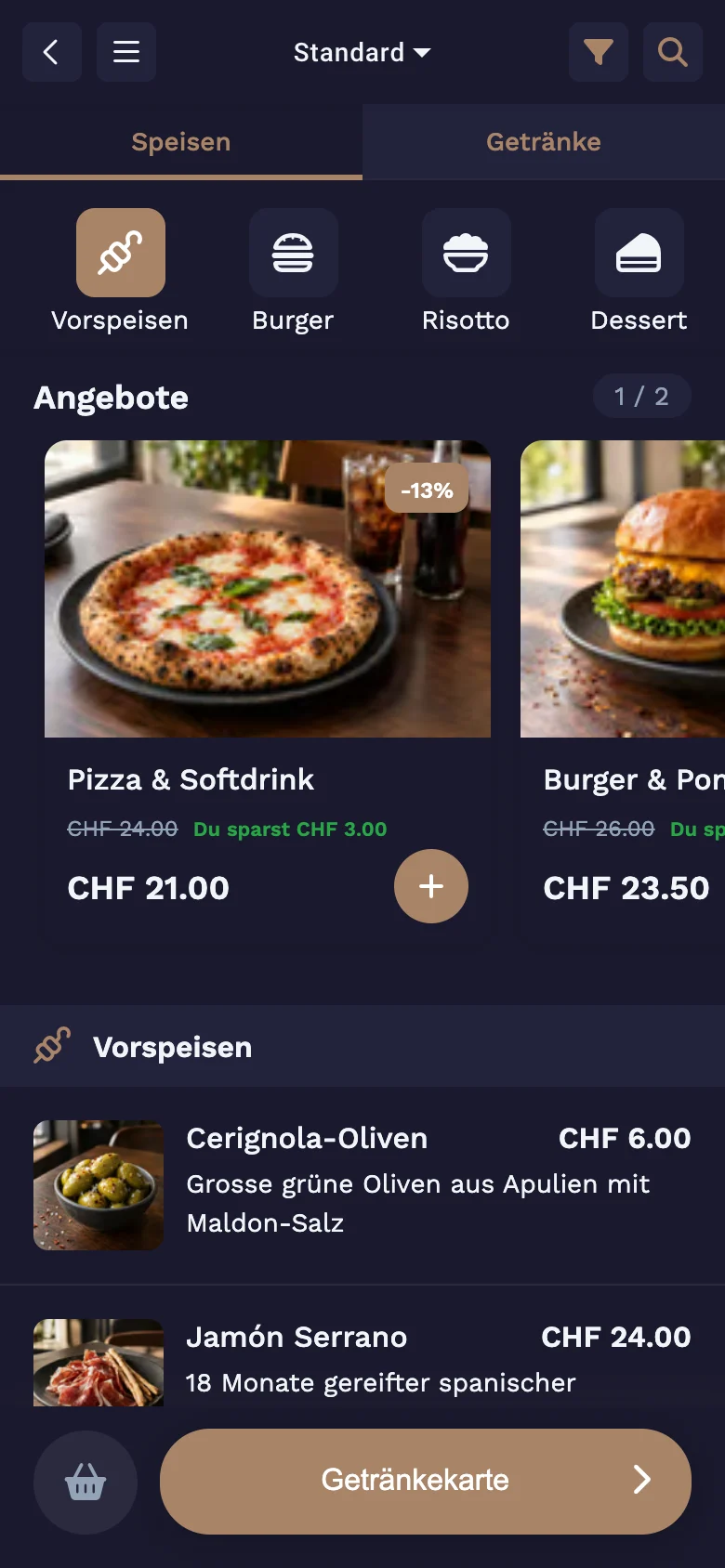
Menu with photos and allergens
Every dish with photo, description and price. Guests filter by 14 allergens, and "may contain traces" is shown right on the product.
- 02
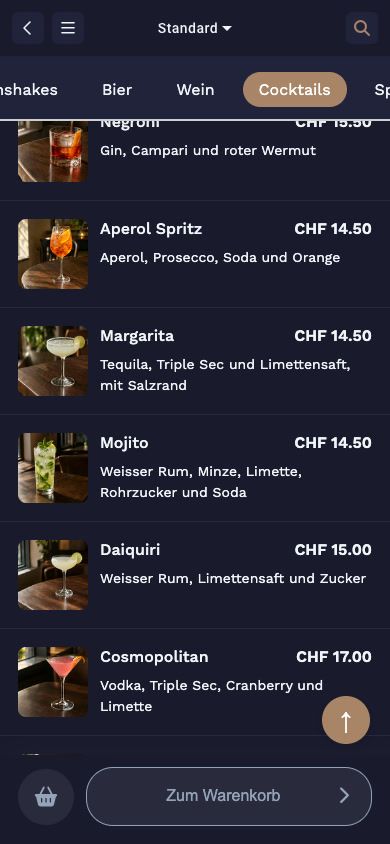
Drinks in their own tab
Food and drinks are separate, with categories such as beer, wine or cocktails.
- 03
Requests and extras
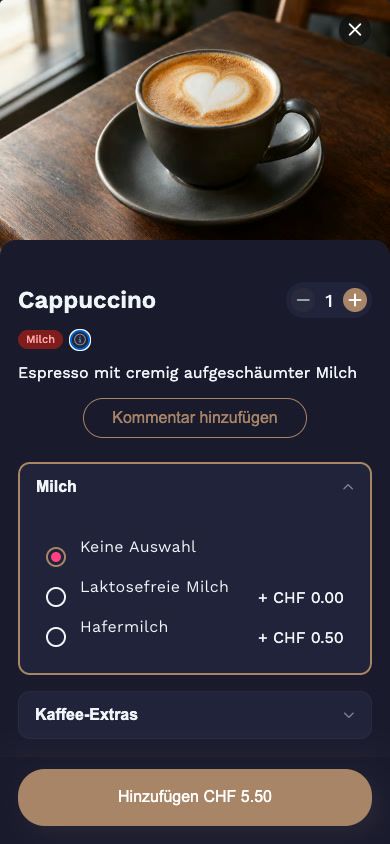
Options such as the milk for a cappuccino, with a surcharge if you set one. Plus a note for the kitchen.
- 04
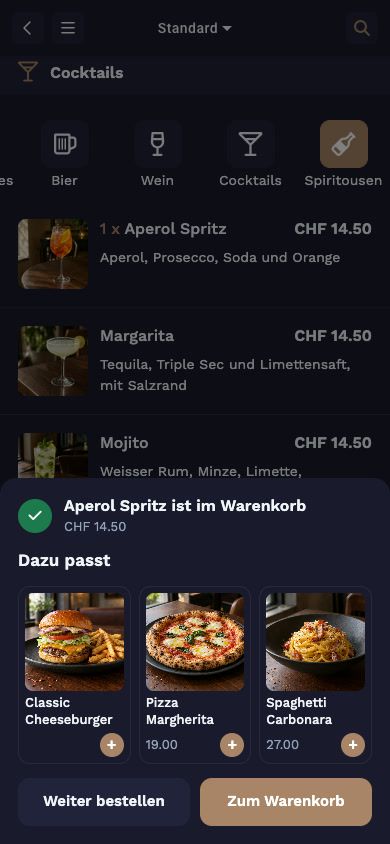
Goes well with
Once an item is added, JamOrder suggests something to go with it, such as a dish with an aperitif.
Payment
Pay without waiting for the bill
Split the bill
Everyone pays for what they had
At an open table, each guest picks their items and pays for them by QR code. Everyone at the table sees right away what has already been paid. Cash at the table works if you allow it for your venue.
CHF 0
Monthly fee
Payments charged by payment method and volume, with no fixed fee per receipt.
Tips
Suggestions from 5 to 25 percent
Or any amount. You decide whether and how JamOrder asks.
OrderAdmin
One QR code per table
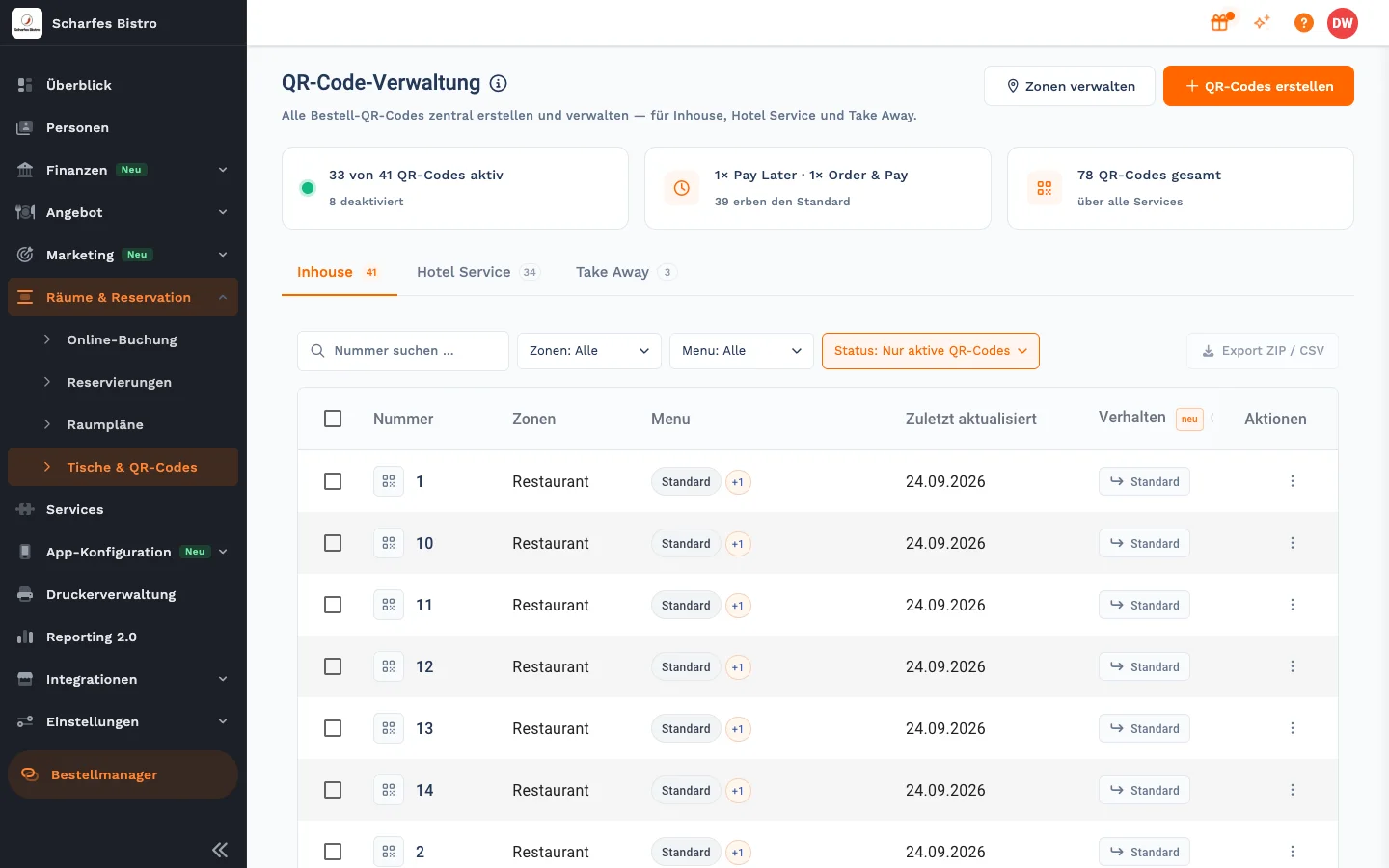
You create QR codes in OrderAdmin, per table and area, each with its own payment settings.
How it connects
One order, one system
- GuestsJamOrder
order and pay in the browser
- KitchenKitchen display
sees every order in real time
- ServiceJamWaiter
works on the same table and the same POS
- Back officeOrderAdmin
menu, QR codes, times and zones
Frequently asked questions
Questions about ordering at the table
Do guests need an app?
No. The QR code opens the menu in the browser. A guest account is optional.
Can guests pay in cash?
Yes, if you enable cash payment for your venue. Otherwise guests pay online when ordering or at the end via the open tab.
Can I use different settings per table?
Yes. You decide for each QR code whether guests pay straight away or later. Without its own setting, the venue setting applies.
Where does the order go?
Straight to the kitchen, on the kitchen display or as a printed ticket. Your staff see open tables in JamWaiter.
What does it cost?
Self-ordering with JamOrder has no licence, set-up or monthly fee. We charge payments by payment method and volume, with no fixed fee per receipt. The rate is set out in your quote.
Demo
See Jamatu for yourself
In our demo you click your way through the floor plan, courses and payment all the way to the end-of-day closing. Once you sign up, we activate your access.
- Free and with no obligation
- In your browser, no installation