




For guests in your venue
JamKioskSelf-ordering at the kiosk, no queuing
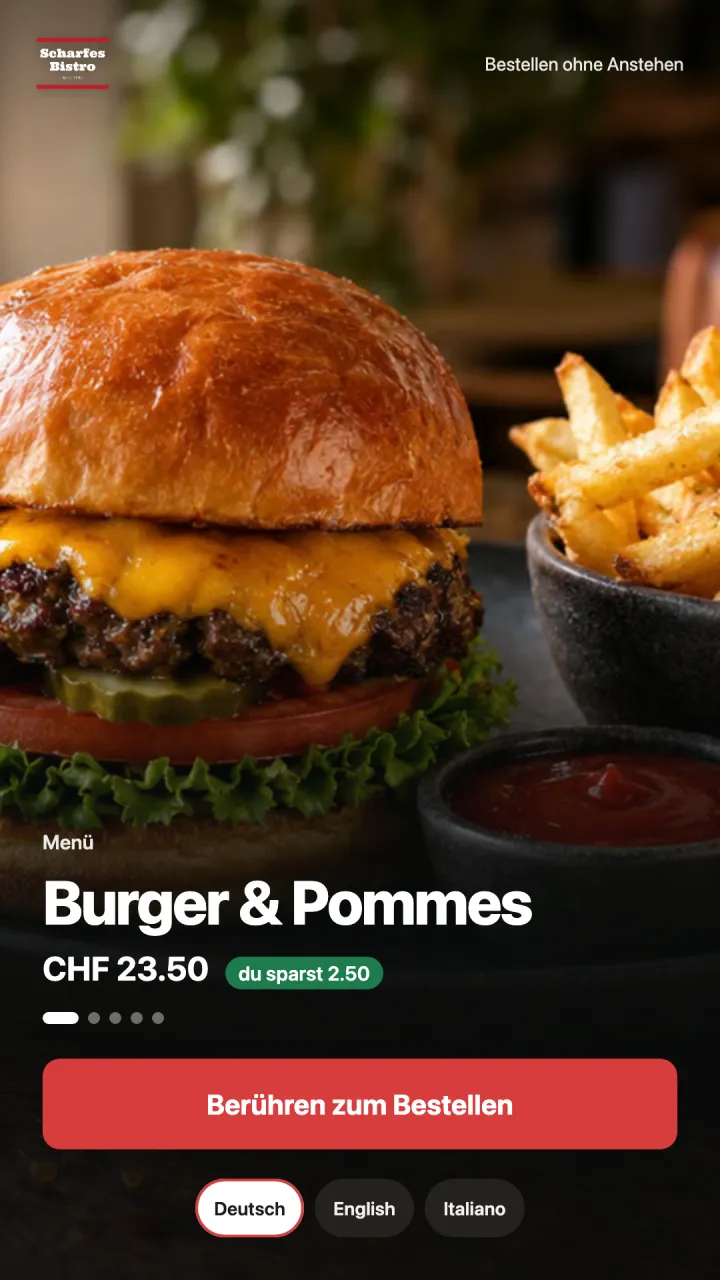
Guests pick from your menu on a large touchscreen, turn their burger into a meal deal and pay right at the kiosk. Then they get a pickup number and a receipt. Made for fast food and quick service.
- 21.5 inches
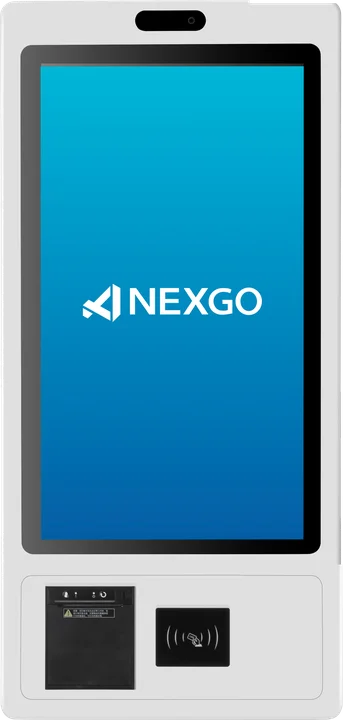
- portrait touchscreen with built-in receipt printer
- Card or TWINT
- at the built-in payment terminal, with optional tipping
- DE, EN, IT
- guests choose their language at the kiosk
At the kiosk
From start screen to pickup number
- 01
Eat in or take away
The start screen shows your offers. With one tap, guests choose whether to eat in or take away.
- 02
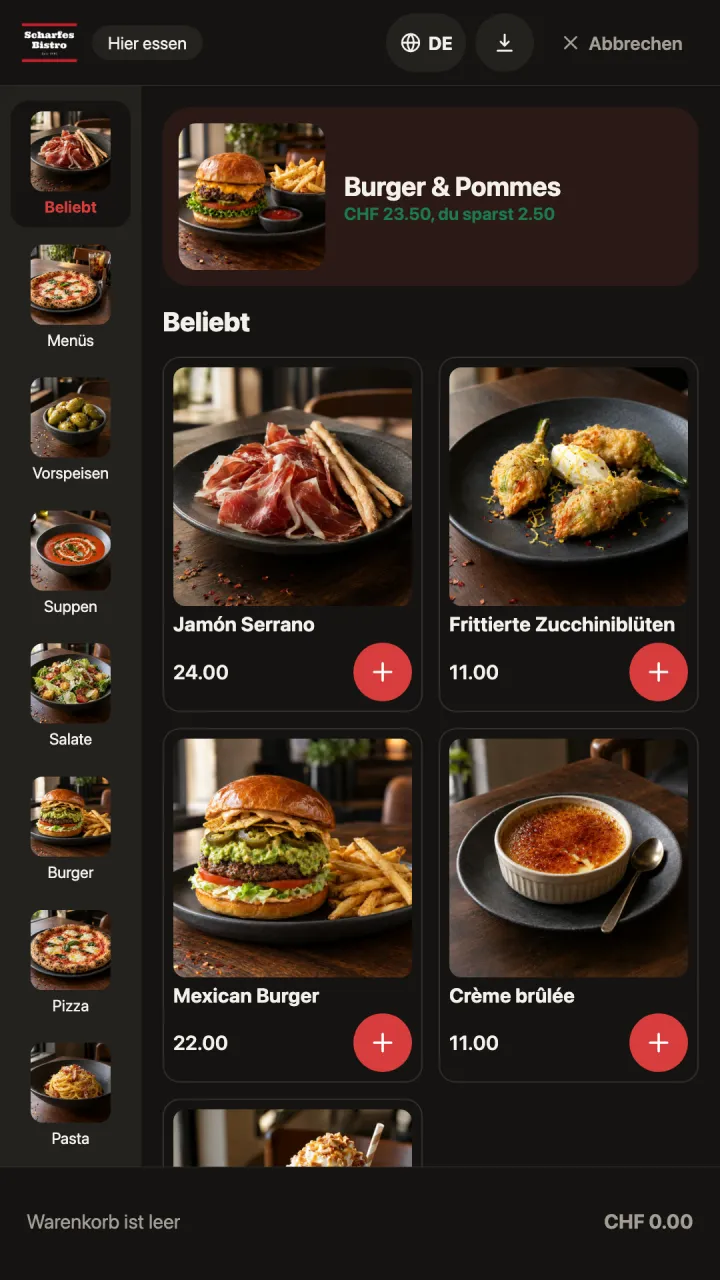
Popular, meal deals, categories
The menu opens with your best sellers. Next to them are meal deals and categories with large pictures.
- 03
Extras and «Make it a meal»
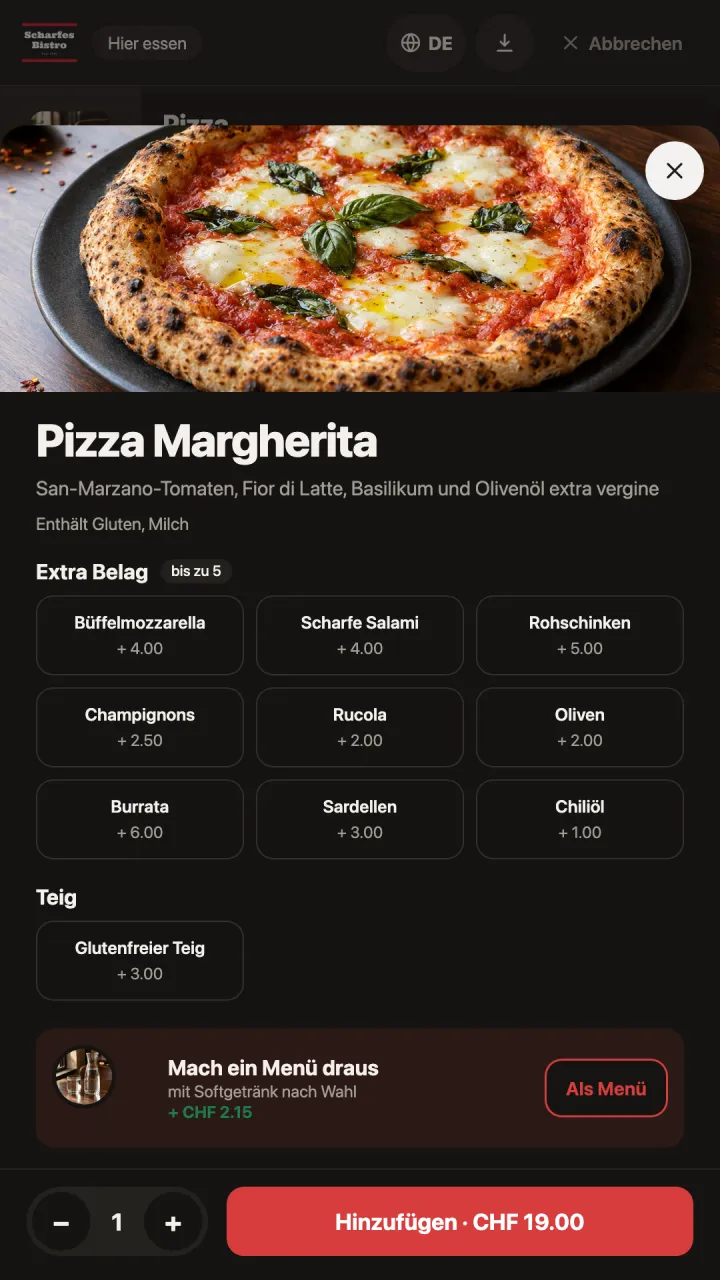
On the product page, guests choose extras and can turn the item into a meal with one tap. Then «Goes well with» suggests add-ons.
- 04
Basket, payment, pickup
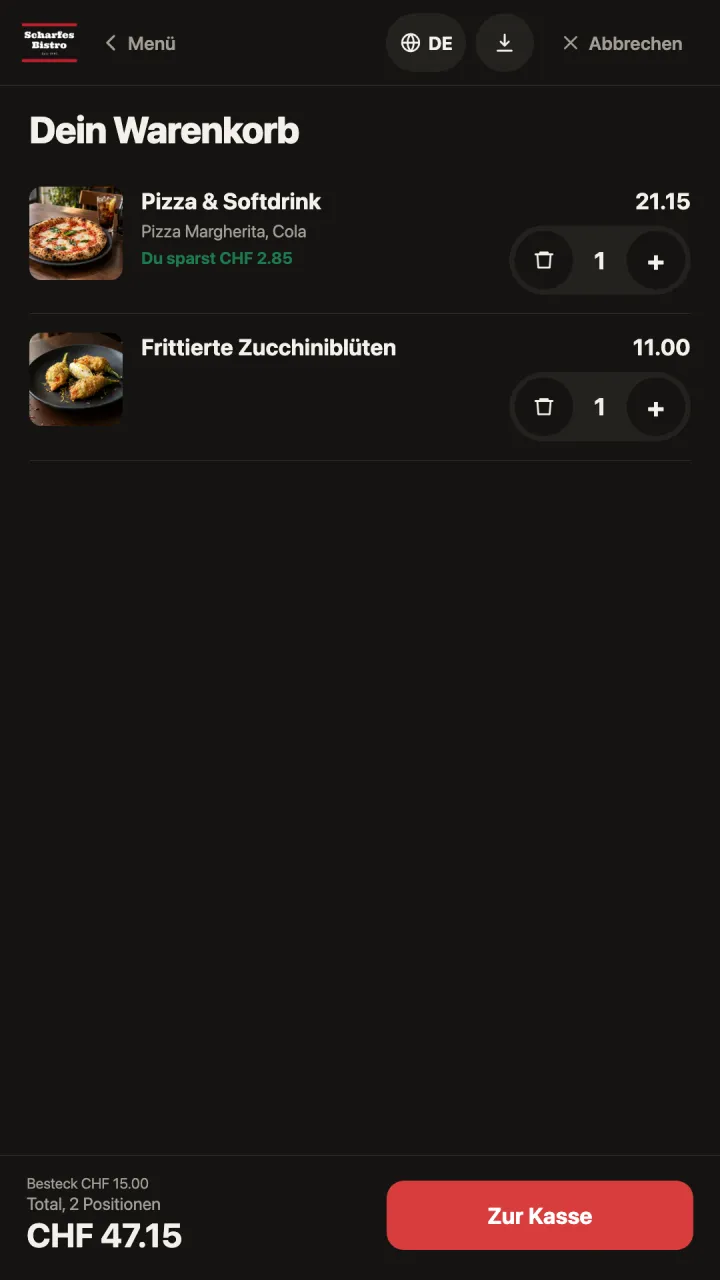
The kiosk combines single items into the cheaper meal deal and asks «Anything else?». Guests pay at the kiosk or at the counter, then get a pickup number and receipt.
Features
Selling without anyone at the till
Upselling
Popular, meal upgrade and «Goes well with»
In the Design Center you decide which upselling prompts the kiosk shows. In the basket, it spots when single items are cheaper as a meal deal.
For everyone
Lower view
One tap lowers the interface, for example for guests in a wheelchair.
Payment
At the kiosk or at the counter
Card or TWINT at the kiosk. If you allow it, guests can pay at the counter and your team takes payment there.
In your venue
With pickup number in Order Master
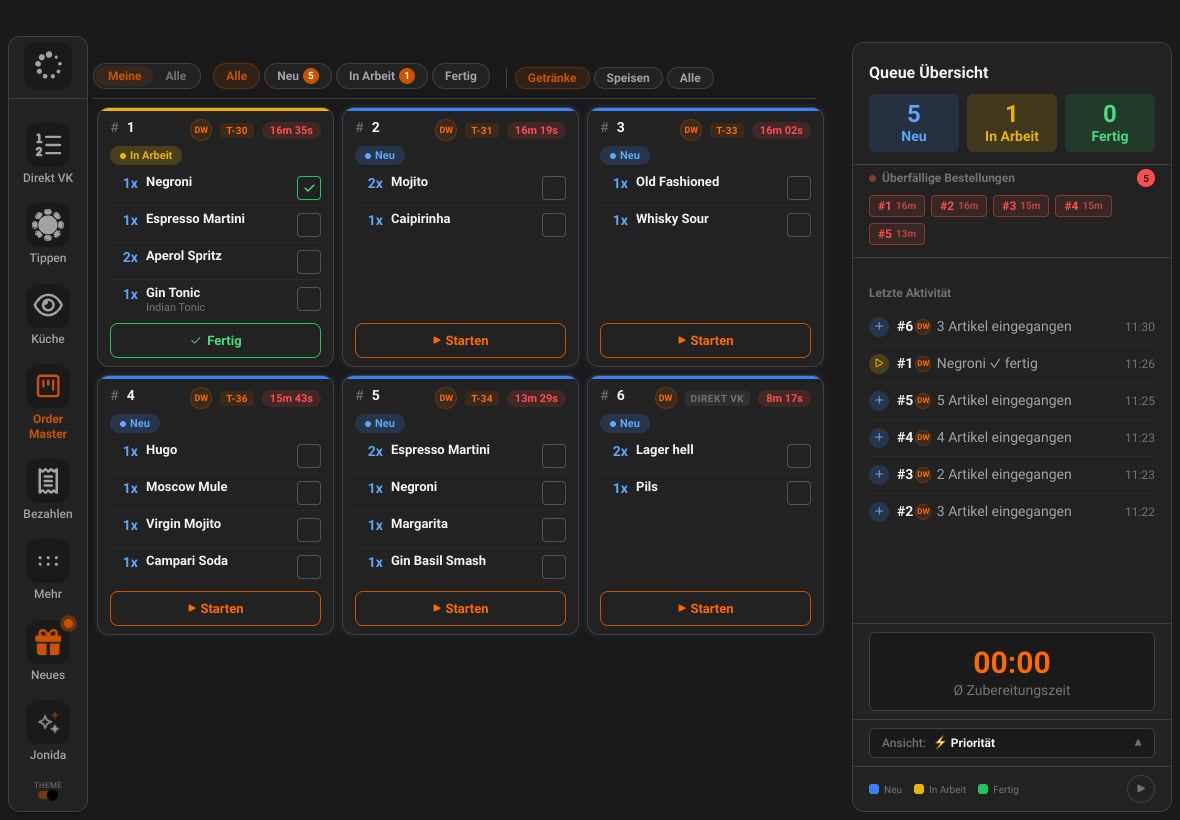
Kiosk orders appear in Order Master with their pickup number, kitchen tickets carry a kiosk badge, and Reporting 2.0 shows JamKiosk as its own channel.
Staff
Staff mode
Tapping the logo three times opens staff mode for your team, with an optional PIN.
Setup
Pair in OrderAdmin
Pair the kiosk with a 6-digit code and set service types, meal deals, tipping and waiting times.
The device
The NEXGO AF910 kiosk
JamKiosk runs as an Android app on the AF910. Payment terminal and receipt printer are built in.
NEXGO AF910
N62 payment terminal built inFree-standing unit in your venue, for fast food and quick service
- 21.5-inch touchscreen, 1920 x 1080, portrait
- Thermal printer with 80 mm paper and auto-cutter
- Android 11
- Wi-Fi 2.4 GHz, LAN and Bluetooth
- 835 x 380 x 85 mm, power supply 100 to 240 V
Technical details according to the NEXGO data sheet on nexgoglobal.com. According to the data sheet, the AF910 has no mobile data and needs Wi-Fi or LAN.
How it fits together
The kiosk is part of your POS, not an add-on
- GuestsJamKiosk
order and pay at the kiosk
- KitchenKitchen display
prepares the order
- CounterJamWaiter
shows it in Order Master with the pickup number and takes payment from guests who pay at the counter
- Back officeOrderAdmin
sets up the kiosk and sees the channel in reporting
FAQ
Questions about JamKiosk
How much does JamKiosk cost?
CHF 59 per kiosk per month. The kiosk itself is a one-off cost from CHF 2'750 depending on the model, including setup. Installation in the venue is up to you.
Can guests pay in cash?
At the kiosk, guests pay by card or TWINT. If you allow «Pay at the counter», your team takes payment there, cash included.
Does the kiosk need an internet connection?
Yes. The AF910 connects via Wi-Fi or LAN. According to the data sheet, it has no mobile data.
Can I try JamKiosk?
Yes. In the demo portal, the kiosk runs in your browser under the venue type fast food and quick service. There, only «Pay at the counter» is available.
How do I set up the kiosk?
In OrderAdmin under App configuration › JamKiosk. There you pair the kiosk with a 6-digit code and set service types, meal deals, tipping and waiting times.
Demo
See Jamatu for yourself
In our demo you click your way through the floor plan, courses and payment all the way to the end-of-day closing. Once you sign up, we activate your access.
- Free and with no obligation
- In your browser, no installation